We saw previously how to use the built-in URL property. Now, we will demonstrate how to add your own property values.
In order to define additional properties you will need to do the following:
- Add properties to the application.properties file or create an additional property file (the best practice is to put all your properties in a single file)
- Create a class that will automatically load the property.
- Use this class in your test.
Add properties to the application.properties file
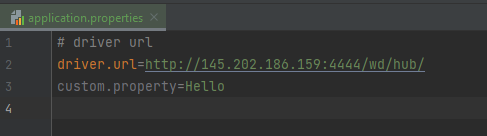
So, we will start by adding a new property to the application.properties file, and we will name it custom.property, and its value will be “Hello”:
Create a class that will automatically load the property
Next, let’s define a class that will automatically hold the value. Note! The class’s package name MUST start with co.verisoft.
package co.verisoft.examples.property;

@Getter
@Component
public class CustomProperty {

    @Value("${custom.property}")
    private String customProperty;
}
Let’s understand this piece of code:
package co.verisoft.examples.property;- As mentioned previously, we MUST start our package name usingco.verisoftin order for the properties to be loaded.@Getter- It’s a Lombok annotation. It means that for each of the fields we are going to define, we will not need to define a getter method, however, an automatic getter will be created. So, for instance, in this case, an automaticgetCustomProperty()method will be created for thecustomPropertyfield.@Component -This line tells Spring that when looking for configurations, this class should also be included in the configuration classes@Value("${custom.property}")- This tells Spring to look for the specificcustom.propertyvalue. The property name should match the name we added earlier in the property file.private String customProperty;- Finally, this is the field where our property will be stored.
Use this class in your test
Finally, here is the complete code of your test:
@Slf4j
@ExtendWith(SpringExtension.class)
@ContextConfiguration(classes = {EnvConfig.class})
public class PropertyFileLoaderTest extends BaseTest{

    @Autowired
    CustomProperty customProperty;


    @Test
    @DisplayName("Custom Property")
    public void customProperty(VerisoftDriver driver) throws InterruptedException {
        Assertions.assertEquals(customProperty.getCustomProperty(), "Hello");
    }
}
We explained lines 1-4 on the previous page, so we will focus on lines - 6-7:
@Autowired- This will tell Spring that the next line should be injected using the Spring framework.
CustomProperty customProperty;- This is the class we created previously.
Now, all we have to do is to use it in our test, like this:
customProperty.getCustomProperty()