When adding a new service and ensuring it is accessible over HTTPS, simply configuring Traefik in the Docker Compose file isn’t enough. To guarantee a secure, reliable connection, you must also set up the correct DNS records in Cloudflare. This includes creating the proper DNS roles, verifying that they’re active, and ensuring that user requests are accurately routed to your service. The steps below detail how to configure these settings and validate that everything is working as intended.
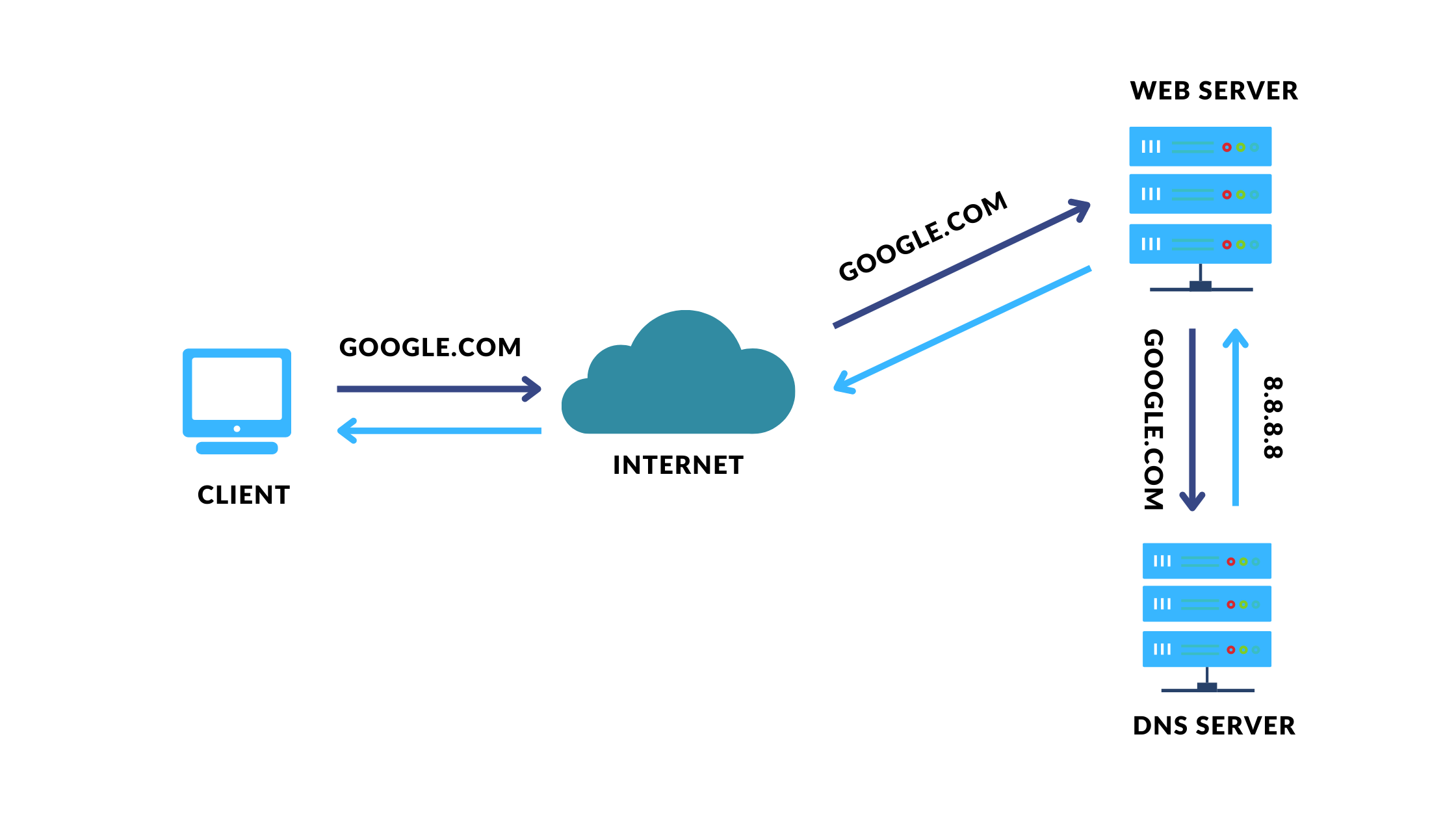
1. What is DNS?
- DNS (Domain Name System) is the internet's phonebook. It translates human-friendly domain names (e.g., http://grid.verisoft.io ) into IP addresses that computers use to identify each other.
- It ensures users can access services using memorable names instead of numerical IP addresses.
2. Adding a DNS Role in Cloudflare
-
Log into Cloudflare:
Access Cloudflare dashboard and select the relevant domain. -
Navigate to DNS Settings:
In the domain's dashboard, click on the DNS tab. -
Add a DNS Record:
- Type: Choose “A”
- Name: Enter the subdomain or service name (e.g.,
gridfor http://grid.verisoft.io ). - IPv3 adderss: Provide the IP address of our server: 95.216.217.133.
- DNS Role: If you used traefik like the Building Docker Compose file, set disable (DNS only). otherwise, read the following.
- TTL: Set a TTL (Time To Live) value if necessary. You can leave it with “Auto”.
-
Note:
When integrating with Traefik, ensure the DNS record matches the role defined in your Docker Compose labels.
3. Verifying DNS Role Activation
-
Command Line Check:
Use thedigcommand to confirm that the DNS record is active.dig grid.verisoft.io +short -
Expected Outcome:
The command should return the correct IP address associated with the record.95.216.217.133
If it doesn’t, re-check your DNS settings in Cloudflare.
-
Additional Tips:
- DNS changes may take some time to propagate.
Additional information:
The difference between accessing via DNS only and with Cloudflare proxy
When deciding how to expose your services, you have two primary approaches:
- Cloudflare proxy.
- DNS only
Cloudflare proxy
With the Cloudflare proxy enabled, requests are forwarded directly to a specific server IP and port (for example, Chat.verisoft.io ---> 95.216.217.133:3001 ). This method is particularly useful when Traefik routing isn’t feasible, as it provides a secure SSL connection even while directing traffic straight to the server.
In that case, we need to open the firewall to the desired port. So the service can be reached with Chat.verisoft.io or 95.216.217.133:3001. In that case- its not fully secured.

Configure Cloudflare proxy:
-
Navigate to Rules
-
Create new rule - duplicate an existing rule and change it
-
Set the role to:
- Field: Hostname
- Operator: equals
- Value: same as the DNS record
- Then → rewrite to: Service port (e.g 3001)
DNS-only + Traefik
On the other hand, opting for DNS-only routing directs traffic through Traefik's configured secure ports.(All the services go thought one or two ports )
This approach not only enhances security by leveraging Traefik’s built-in protections and SSL management but also allows you to restrict direct port access using firewall rules, thereby reducing potential vulnerabilities.

In summary, while the Cloudflare proxy offers flexibility when Traefik isn’t available, DNS-only routing delivers a more controlled and secure environment by ensuring all traffic passes through your established security layers.