Maintaining a consistent and professional email signature is essential for effective communication within and outside the organization. To streamline this process, we have developed an Email Signature Generator using Google Apps Script. This tool allows you to effortlessly create a personalized HTML email signature by simply entering your details. Follow the steps below to generate and insert your custom signature into Gmail.

Create the Signature in the Email Signature Generator
-
Open the Email Signature Generator:
- Click on the following link to access the generator: Email Signature Generator.
-
Fill the form:
- Name: Enter your full name.
- Role: Specify your job title or role within the company.
- Email: Provide your work email address.
- Phone: Input your contact number without the opening zero, the Signature Generator will automatically adding +972 at the start of the phone number .
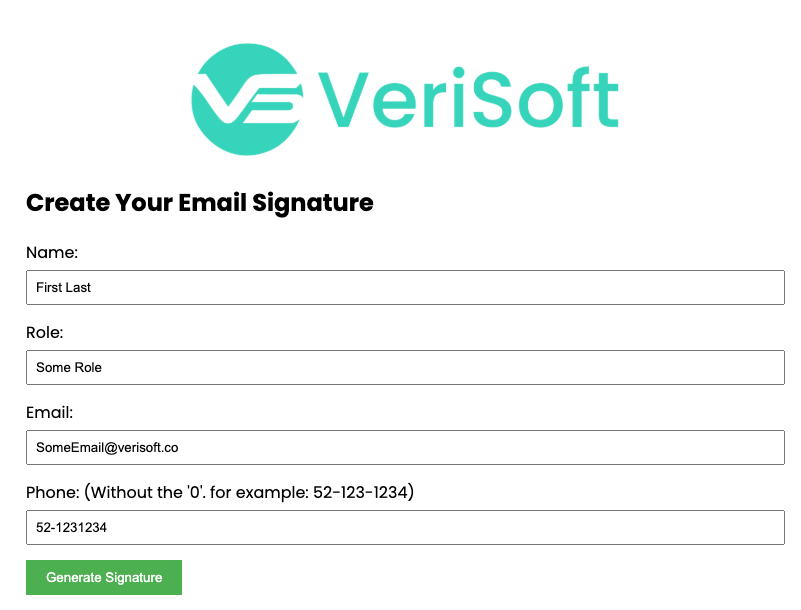
Click the "Generate Signature" Button:
-
Once all fields are filled, click the "Generate Signature" button to create your personalized email signature.
- A new browser tab will open displaying your generated HTML signature.
- Simultaneously, an HTML file named
email_signature.htmlwill be automatically downloaded to your device.
Inserting the Signature into Gmail
-
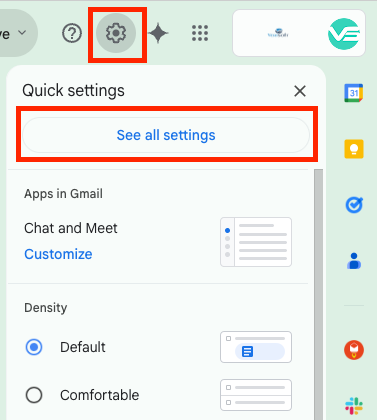
Open Gmail Settings:
- Log in to your Gmail account.
- Click on the gear icon in the top-right corner and select "See all settings" from the dropdown menu.
-
Navigate to the "Signature" Section:
- In the "General" tab, scroll down to the "Signature" section.
-
Create a New Signature:
- Click on "Create new" and name your signature (e.g., "Professional Signature").
-
Insert the Generated HTML:
- Open the downloaded
email_signature.htmlfile in a web browser. - Press
Ctrl + A(Windows) orCmd + A(Mac) to select all content. - Press
Ctrl + C(Windows) orCmd + C(Mac) to copy the HTML content. - Return to the Gmail Signature settings and paste (
Ctrl + VorCmd + V) the content into the signature box.
- Open the downloaded
-
Save Changes:
- Scroll down to the bottom of the settings page and click "Save Changes" to apply your new signature.
-
Quick Test
- Send mail to yourself to make sure the changes saved and everything look as expected.