This guide outlines the steps to create a standardized Gmail account for Verisoft. Ensure you follow each step carefully to maintain uniformity across all new accounts.
Step-by-Step Account Creation
-
Access Gmail Creation Page:
Open the Google admin account sign-up page in your browser. -
Fill in Personal Details:
- Enter First Name and Last Name.
- In the Primary email address field, use the format:
firstname.lastname@verisoft.co.
- Example: For john doe: john.doe@verisoft.co
-
Enter Contact Information:
- Provide the designated phone number.
- Add the personal email address as the secondary email for recovery purposes.
-
Set Up a Profile Photo:
- Upload the company-email photo.
-
Create a Strong Password:
- Choose “Automatically generate a strong password containing 16 characters”
-
Finalize Account Creation:
- Review all entered details.
- Submit the form to create the account.
-
Post-Creation:
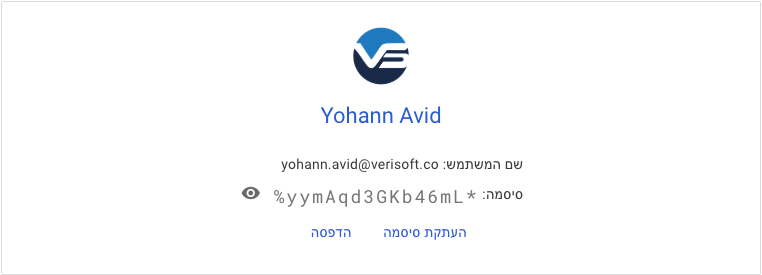
- Immediately take a screenshot of the confirmation screen that includes the password (ensure the screenshot is stored securely).
- Save the screenshot in the designated secure location as per company guidelines.
The result should look like this:

Final Notes
- Consistency:
The standardized naming, company photo, and uniform contact details help maintain a professional and consistent appearance for all Verisoft accounts. - Security:
Always generate a strong password and secure any sensitive information (like screenshots) according to our security policies. - Verification:
Double-check each step before final submission to avoid any discrepancies.
By following this guide, you'll ensure that each new Gmail account aligns with Verisoft's standards and security practices.